What is Distributed Version Control?
Before Git, most version control systems followed a centralized model. Think of it like a library: there's one central server that holds the "master copy" of your code, and developers check out files, make changes, and check them back in. If the server goes down, nobody can work. If you're offline, you're stuck.
Git changed everything by introducing a distributed model. Instead of one central repository, every developer has a complete copy of the entire project history on their local machine. You can commit, branch, merge, and view history—all without touching a server.
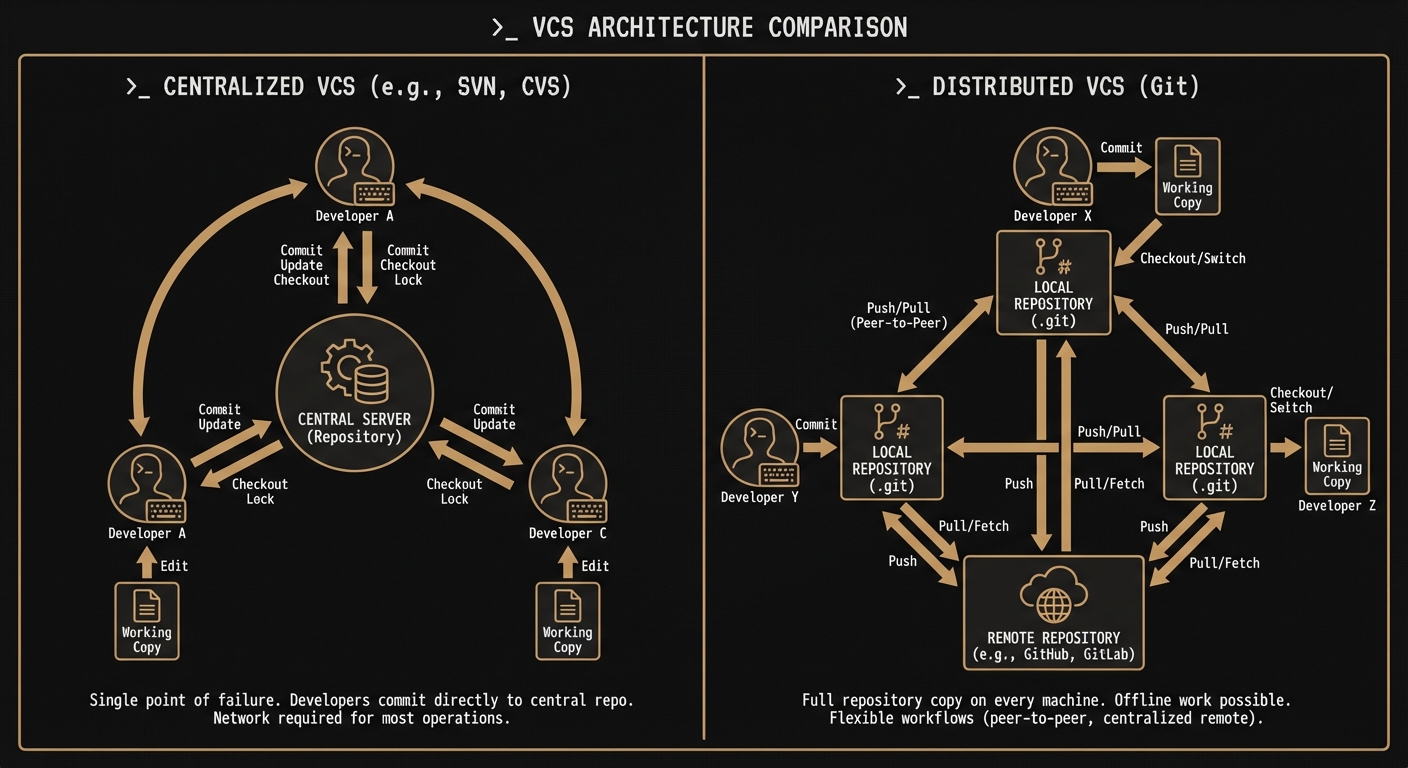
Centralized VCS vs Distributed VCS (Git)
Why Git as a Solution?
Linus Torvalds created Git in 2005 to manage the Linux kernel development. He needed a system that could handle:
- Speed: Operations needed to be blazing fast, even with massive codebases
- Distributed Development: Thousands of developers working independently
- Data Integrity: Absolute certainty that code hasn't been corrupted or tampered with
- Non-linear Development: Support for thousands of parallel branches
Traditional version control systems like SVN or CVS couldn't meet these requirements. Git was built from the ground up with a fundamentally different architecture.
Git is Not Differential
Most version control systems store information as a list of file-based changes. They keep track of the differences (deltas) between versions:
Version 1: File A (100 lines)

Version 2: File A + added 5 lines at line 50

Version 3: File A + deleted 2 lines at line 75
Git doesn't work this way. Instead, Git thinks of data as a series of snapshots. Every time you commit, Git takes a picture of what all your files look like at that moment and stores a reference to that snapshot.
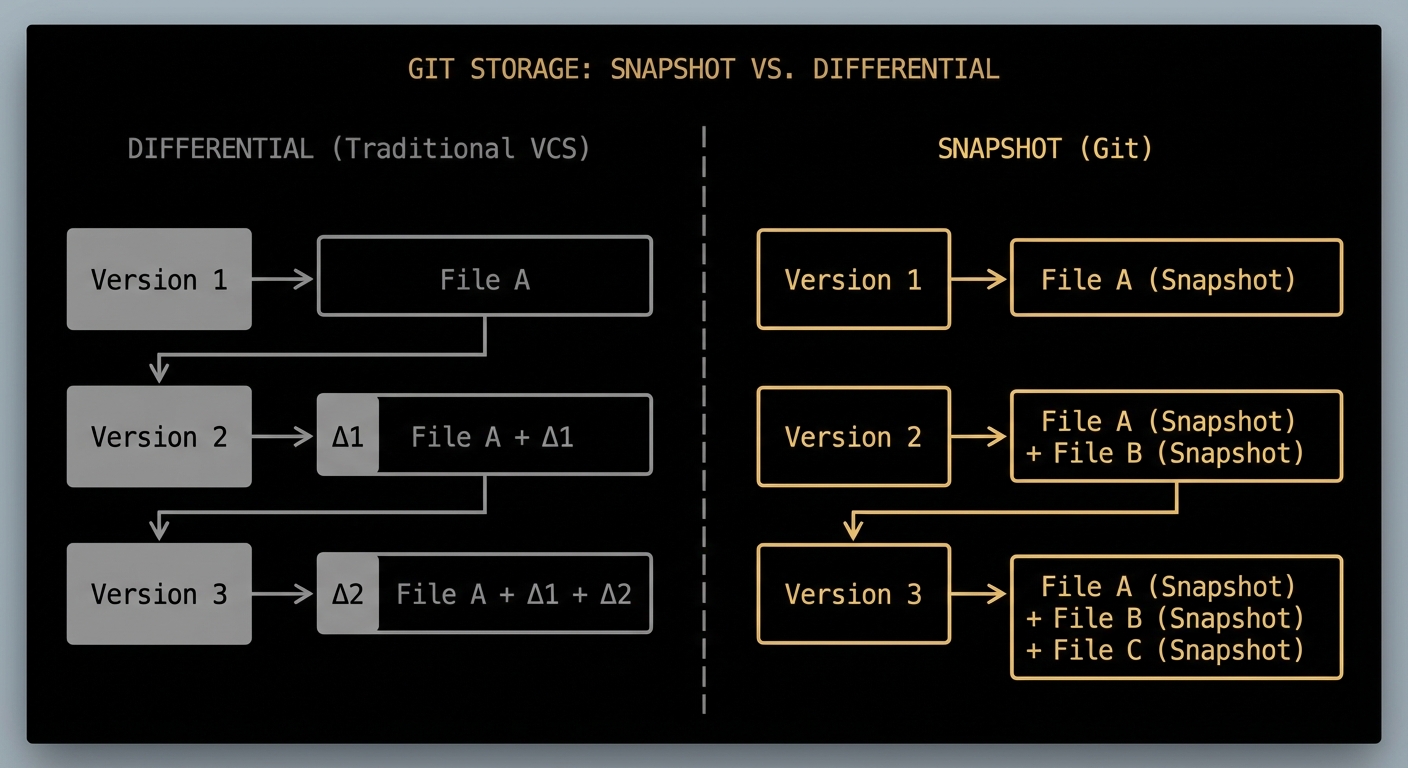
Git stores snapshots, not differences
Efficiency: If a file hasn't changed, Git doesn't store it again—it just links to the previous identical file. This makes Git incredibly efficient while maintaining complete snapshots.
Git Architecture
Git's architecture is beautifully simple. It consists of three main areas:
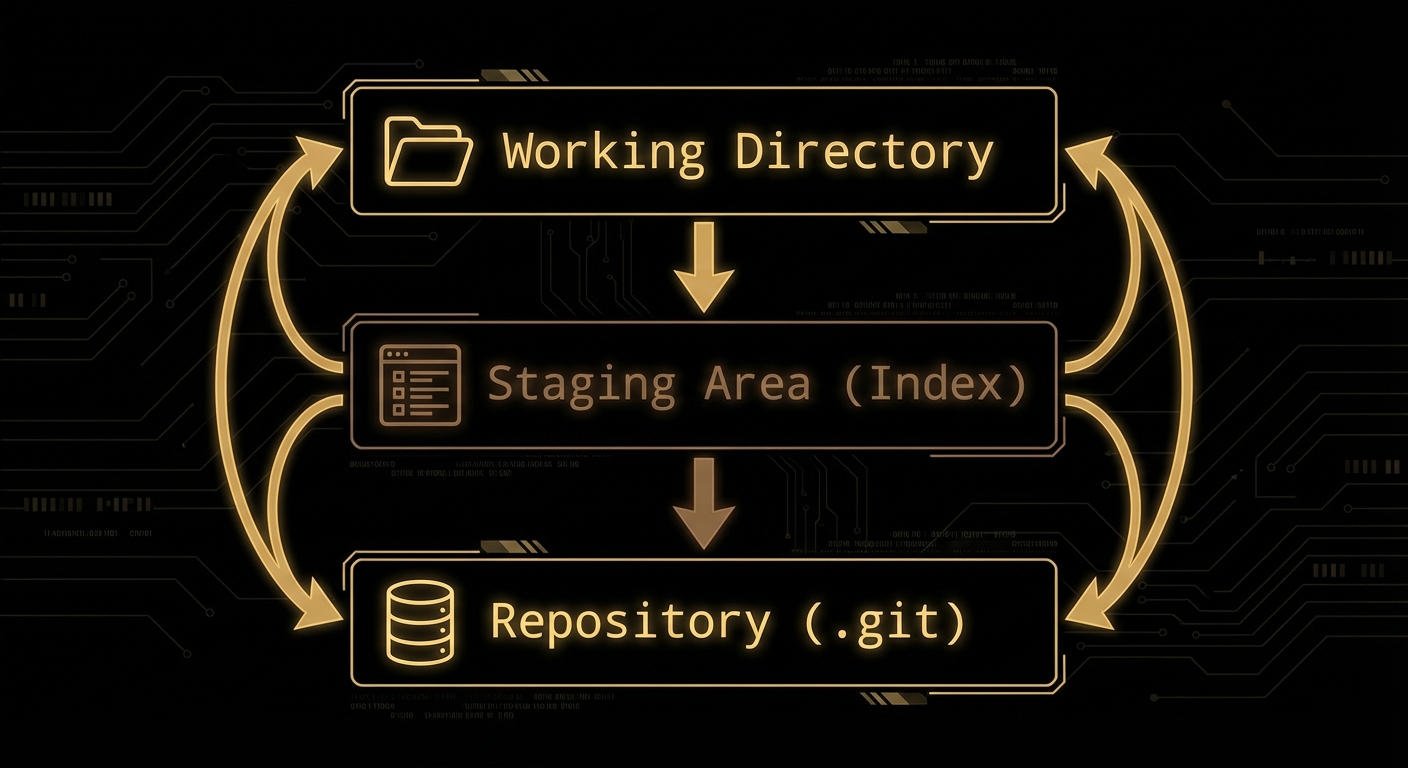
The three layers of Git architecture
1. Working Directory
This is your actual project folder—the files you see and edit. It's a single checkout of one version of the project, extracted from the compressed database in the Git directory.
2. Staging Area (Index)
The staging area is a file (generally in your .git directory) that stores information
about what will go into your next commit. It's like a preparation area where you assemble your next
snapshot.
# Add specific files to staging

git add file1.js file2.js


# View what's staged

git status


# Commit the staged snapshot

git commit -m "Add new features"
3. Repository (.git directory)
This is where Git stores all the metadata and object database for your project. It's the most important part of Git—when you clone a repository, this is what you're copying.
File States in Git
Understanding how files move through Git's three areas is crucial. Every file in your working directory can be in one of these states:
The File Lifecycle
# Create a new file (UNTRACKED)

echo "Hello" > file.txt


# Stage it (STAGED)

git add file.txt


# Commit it (UNMODIFIED)

git commit -m "Add file"


# Edit it (MODIFIED)

echo "World" >> file.txt


# Stage changes (STAGED)

git add file.txt


# Commit changes (UNMODIFIED)

git commit -m "Update file"
Git's Core Requirements
Git was designed with specific requirements that shape its entire architecture:
Design Requirements
- Track Everything: Every change, every file, every version must be tracked with perfect fidelity
- OS Independent: Git treats everything as files and folders—no special OS-specific features
- Unique ID: Every object gets a unique identifier (hash) based on its content
- Track History: Complete history must be preserved and easily accessible
- No Content Change: Once committed, content is immutable—hashes ensure integrity
These requirements led to Git's content-addressable filesystem design. Every piece of content is identified by a SHA-1 hash of its contents, making it impossible to change history without detection.
Git Objects: The Building Blocks
At its core, Git is a content-addressable filesystem. It stores four types of objects, each identified by a SHA-1 hash:
Blob (Binary Large Object)
Stores the contents of a file. Just the raw data—no filename, no metadata. If two files have identical content, they share the same blob.
# View blob content

git cat-file -p a3f2b9c
Tree
Represents a directory. It stores references to blobs (files) and other trees (subdirectories), along with their names and permissions.
# View tree structure

git ls-tree HEAD
Commit
Points to a tree (the snapshot) and contains metadata: author, committer, date, message, and parent commit(s). This creates the history chain.
# View commit details

git show HEAD
Tag (Annotated)
A permanent reference to a specific commit, usually used for releases. Contains a message, tagger info, and points to a commit object.
# Create annotated tag

git tag -a v1.0 -m "Release"
So What is the Repository?
The repository is essentially a database of objects plus
references (pointers to commits). When you look inside .git/, you'll
find:
.git/

├── objects/        # All blobs, trees, commits, tags

├── refs/           # Branches and tags (pointers to commits)

│   ├── heads/      # Local branches

│   └── tags/       # Tags

├── HEAD            # Points to current branch

├── config          # Repository configuration

└── index           # Staging area
A branch is just a lightweight movable pointer to a commit. HEAD is a pointer to the
current branch. When you commit, the branch pointer moves forward to the new commit.
How Hashing Powers Git
Git uses SHA-1 hashing to create a unique 40-character identifier for every object. The hash is computed from the object's content, which means:
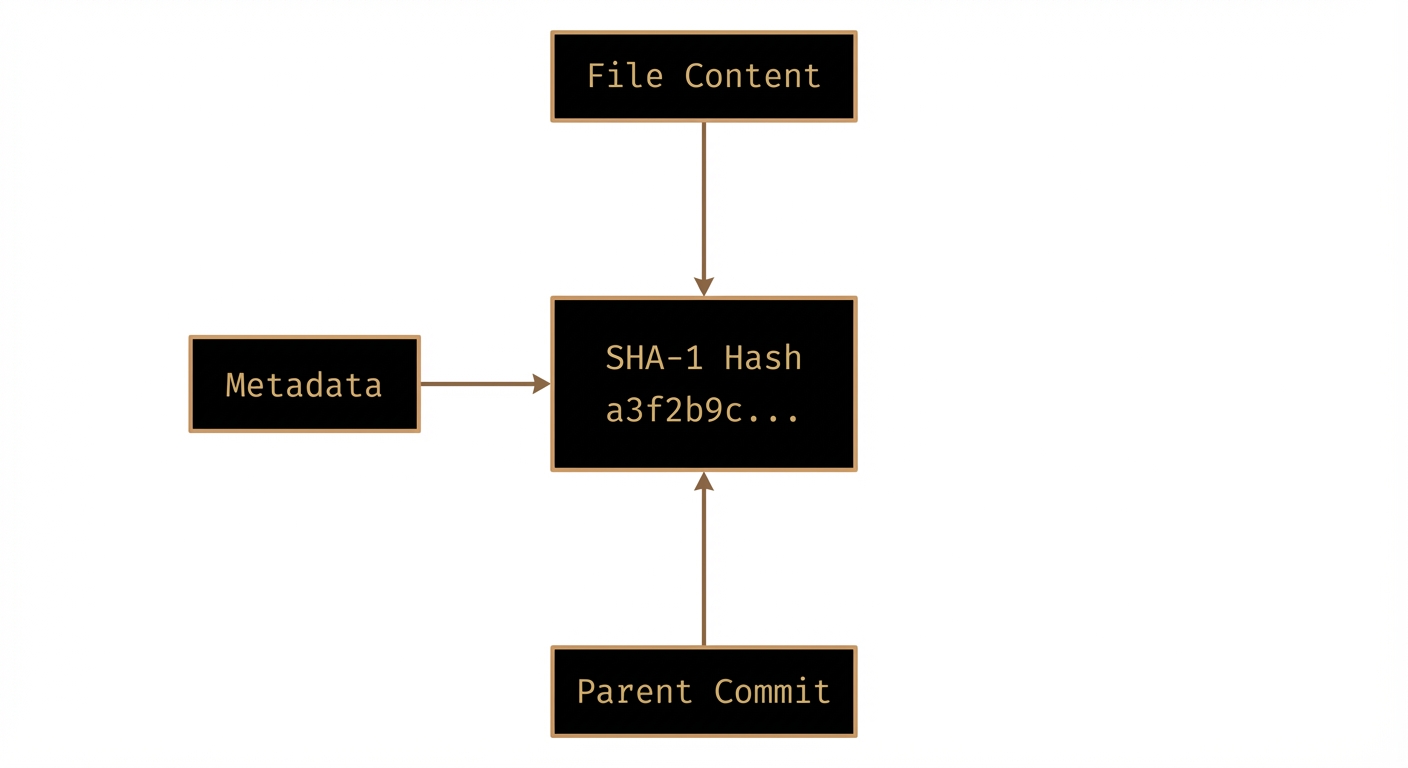
How Git uses SHA-1 hashes for content addressing
- Content Addressing: The hash IS the address. You can retrieve any object by its hash
- Integrity: If content changes even slightly, the hash changes completely
- Deduplication: Identical content always produces the same hash, so Git stores it only once
- Immutability: You can't change history without changing all subsequent hashes
# Hash of a file's content

echo "Hello World" | git hash-object --stdin

# Output: 557db03de997c86a4a028e1ebd3a1ceb225be238


# Every commit has a unique hash

git log --oneline

# a3f2b9c Add new feature

# 8d7e1f4 Fix bug in parser

# 2c9a5b1 Initial commit
Hash Chains Create History
Each commit contains the hash of its parent commit(s). This creates an immutable chain:
Commit C (hash: a3f2b9c)

  ↓ parent

Commit B (hash: 8d7e1f4)

  ↓ parent

Commit A (hash: 2c9a5b1)
If you try to change Commit A, its hash changes. This breaks the chain because Commit B still points to the old hash. This is how Git detects tampering and maintains integrity.
Understanding Branching
Before diving into workflows, you need to understand one of Git's most powerful features: branching. A branch in Git is incredibly lightweight—it's simply a pointer to a specific commit.
How Branches Work
When you initialize a Git repository, you start with one branch: main (or
master in older repos).
This branch is just a pointer to your latest commit. When you create a new branch, Git creates a new
pointer
to the same commit you're currently on.
# View all branches (* shows current branch)

git branch


# Create a new branch

git branch feature-login


# Switch to the branch

git checkout feature-login


# Create and switch in one command

git checkout -b feature-login
Why Use Branches?
Branches allow you to work on different features, experiments, or bug fixes in isolation without affecting the main codebase. This is crucial because:
- Isolation: Your experimental code won't break the working version
- Parallel Development: Multiple features can be developed simultaneously
- Safe Experimentation: Try new ideas without fear—just delete the branch if it doesn't work
- Clean History: Keep your main branch stable and production-ready
Basic Branching Operations
# List all branches

git branch


# Create a new branch

git branch feature-name


# Switch to a branch

git checkout feature-name


# Create and switch in one command (recommended)

git checkout -b feature-name


# Delete a branch (after merging)

git branch -d feature-name


# Force delete a branch (even if not merged)

git branch -D feature-name


# Rename current branch

git branch -m new-name


# See which branch you're on

git status
Merging Branches
Once you've finished work on a branch, you'll want to merge it back into your main branch. This combines the changes from both branches.
# Switch to the branch you want to merge INTO

git checkout main


# Merge the feature branch into main

git merge feature-login


# If successful, delete the feature branch

git branch -d feature-login
Common Git Workflows
Now that you understand branching, let's look at how to use it effectively in real projects. Here are the most common workflows you'll encounter.
1. Basic Solo Workflow
The simplest workflow for working alone on a project:
- Make changes to your files
- Stage the changes:
git add . - Commit with a message:
git commit -m "Description" - Push to remote:
git push origin main
# Daily workflow

git pull origin main          # Get latest changes

# ... make your changes ...

git add .

git commit -m "Add feature X"

git push origin main
2. Feature Branch Workflow
The industry standard for team development. Each feature gets its own branch:
- Create a new branch:
git checkout -b feature/new-login - Make commits on your feature branch
- Push feature branch:
git push origin feature/new-login - Open a Pull Request (PR) for code review
- After approval, merge to main:
git checkout main && git merge feature/new-login - Delete the feature branch:
git branch -d feature/new-login
# Create and switch to feature branch

git checkout -b feature/user-auth


# Make changes and commit

git add .

git commit -m "Add user authentication"


# Push to remote

git push origin feature/user-auth


# After PR approval, merge to main

git checkout main

git merge feature/user-auth

git push origin main


# Clean up

git branch -d feature/user-auth
3. Collaboration Workflow
Working with others requires syncing and handling conflicts:
- Always pull before starting work:
git pull origin main - Create your feature branch from updated main
- Commit your changes regularly
- Before merging, sync with main again:
git pull origin main - Resolve any conflicts
- Push and create PR
# Start your day

git checkout main

git pull origin main


# Create feature branch

git checkout -b feature/my-work


# ... work and commit ...


# Before pushing, sync with main

git checkout main

git pull origin main

git checkout feature/my-work

git merge main                # Merge latest main into your branch


# Resolve conflicts if any

git add .

git commit -m "Resolve conflicts"


# Push your feature

git push origin feature/my-work
Best Practices That Actually Matter
- Commit early, commit often: Small commits are easier to understand and revert if needed
- Pull before you push: Always sync with remote before pushing to avoid conflicts
- Write meaningful commit messages: "Fix bug" is useless. "Fix login timeout after 30 minutes" is helpful
- Never commit secrets: API keys, passwords, tokens don't belong in Git. Use environment variables
- Use .gitignore: Don't commit node_modules, build files, or IDE configs
- Branch names matter: Use
feature/,bugfix/,refactor/prefixes for clarity
Essential Commands Cheat Sheet
# Branching

git branch                    # List branches

git branch feature-name       # Create branch

git checkout feature-name     # Switch branch

git checkout -b feature-name  # Create and switch

git branch -d feature-name    # Delete branch


# Syncing

git pull origin main          # Fetch and merge

git fetch origin              # Fetch without merging

git push origin branch-name   # Push branch


# Undoing

git reset HEAD~1              # Undo last commit (keep changes)

git reset --hard HEAD~1       # Undo last commit (discard changes)

git checkout -- file.txt      # Discard changes to file


# Viewing

git status                    # See current state

git log --oneline             # View commit history

git diff                      # See unstaged changes

git diff --staged             # See staged changes
The Elegance of Git
Git's design is a masterclass in simplicity and power. By building on a few core concepts—snapshots, content addressing, immutable objects, and cryptographic hashing—Git created a system that is:
- Fast: Most operations are local and don't require network access
- Distributed: Every clone is a full backup with complete history
- Secure: Cryptographic hashes ensure data integrity
- Flexible: Branching and merging are cheap and powerful
- Reliable: Nearly impossible to lose committed data
Understanding Git's architecture—the three-layer model, the four object types, and the role of hashing—transforms it from a mysterious tool into an elegant, logical system. Once you understand that Git is just a content-addressable filesystem with a few simple rules, everything else falls into place.