The Big Picture
When you run a program on Linux, browse the web, or save a file, you're interacting with a carefully orchestrated system of layers. At the heart of it all is the Linux kernel—the core that manages hardware and provides essential services to everything running above it.
But what exactly is the kernel? How does it differ from the programs you use every day? And what is this mysterious "user space" everyone talks about?
Linux System Organization
Here's how the Linux system is organized, from the hardware at the bottom to the applications you interact with at the top:
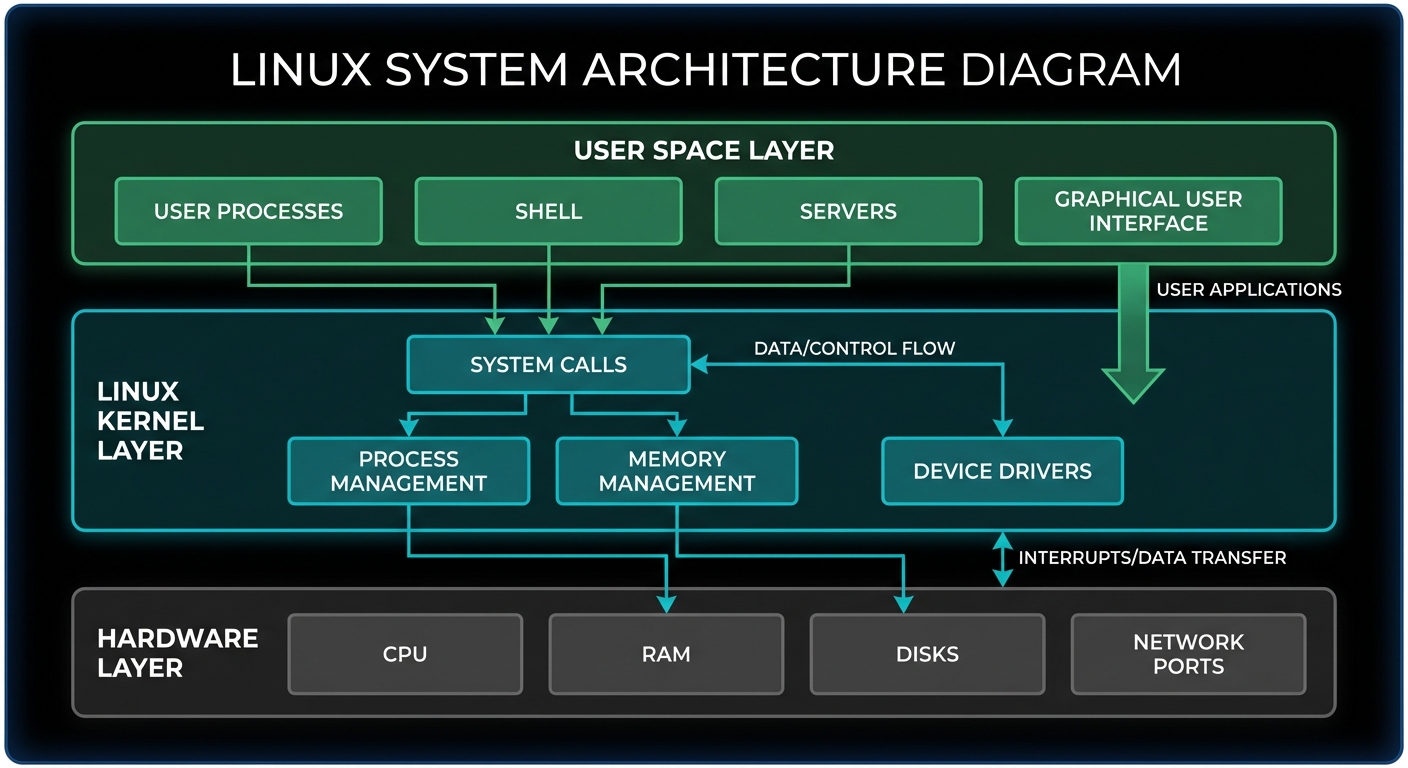
The layered architecture of a Linux system
Let's break down each layer, starting from the bottom and working our way up.
Layer 1: Hardware
At the very bottom is the hardware—the physical components of your computer:
Processor (CPU)
Executes instructions and performs calculations. The brain of the computer.
Main Memory (RAM)
Temporary storage for running programs and data. Fast but volatile.
Disks
Persistent storage (SSDs, HDDs) where files and programs are saved permanently.
Network Ports
Interfaces for network communication (Ethernet, Wi-Fi).
The hardware doesn't understand high-level commands like "save this file" or "send this email." It only understands very low-level instructions. That's where the kernel comes in.
Layer 2: The Linux Kernel
The kernel is the core of the operating system. It's the software that runs with the highest privileges and has direct access to all hardware. Think of it as the manager of the entire system.
- Manages hardware resources (CPU, memory, devices)
- Provides a stable, consistent interface for programs
- Enforces security and isolation between processes
- Handles low-level operations that programs can't do themselves
Key Kernel Components
Process Management
Creates, schedules, and terminates processes. Decides which process gets CPU time and when.
# View running processes

$ ps aux


# View process tree

$ pstree
Memory Management
Allocates and manages RAM. Implements virtual memory, allowing processes to use more memory than physically available.
# View memory usage

$ free -h


# View detailed memory info

$ cat /proc/meminfo
Device Drivers
Translates generic I/O instructions into device-specific commands. Allows the kernel to communicate with hardware.
# List loaded kernel modules

$ lsmod


# View hardware devices

$ lspci
System Calls
The interface between user space and kernel space. Programs use system calls to request kernel services.
# Trace system calls

$ strace ls


# Common system calls:

# open(), read(), write(),

# fork(), exec(), exit()
lsmod to see loaded modules and
modprobe to load new ones.
Layer 3: User Space
Everything that runs above the kernel is called user space. This includes all the programs you interact with daily—web browsers, text editors, databases, shells, and more.
User Space Components
User Processes
Running programs that the kernel manages. Each process has its own memory space and cannot directly access another process's memory.
# Start a process

$ firefox &


# View process details

$ ps -p 1234 -o pid,ppid,cmd
Shell
The command-line interface (bash, zsh, fish). It's a user process that interprets your commands and launches other programs.
# Check your shell

$ echo $SHELL

/bin/bash


# Shell is just a process!

$ ps -p $$
Servers
Long-running background processes (daemons) that provide services: web servers (nginx), databases (PostgreSQL), SSH servers, etc.
# View running services

$ systemctl list-units --type=service


# Check service status

$ systemctl status nginx
Graphical User Interface
The desktop environment (GNOME, KDE) and graphical applications. These are also user processes, just with a visual interface.
# Check display server

$ echo $XDG_SESSION_TYPE

wayland


# List GUI processes

$ ps aux | grep -i gnome
Understanding Processes
A process is a running instance of a program. Processes are the fundamental units that the kernel manages. Let's understand what makes a process.
What is a Process?
When you run a program, the kernel creates a process for it. Each process gets:
- Process ID (PID): A unique number identifying the process
- Memory Space: Its own isolated chunk of RAM
- File Descriptors: References to open files and network connections
- Environment Variables: Configuration settings (PATH, HOME, etc.)
- Execution Context: CPU registers, program counter, stack
# View detailed process information

$ ps aux | head -5


USER       PID %CPU %MEM    VSZ   RSS TTY      STAT START   TIME COMMAND

root         1  0.0  0.1 168660 11420 ?        Ss   Dec05   0:03 /sbin/init

root         2  0.0  0.0      0     0 ?        S    Dec05   0:00 [kthreadd]

omar      1234  2.1  3.4 4567890 123456 ?      Sl   08:00   5:23 /usr/bin/firefox
bash).
Process Lifecycle
Processes are created, run, and terminated. Here's the typical lifecycle:
# 1. Create a new process with fork()

#    The parent process creates a child process


# 2. Replace process image with exec()

#    The child loads a new program into its memory


# 3. Process runs and does its work


# 4. Process exits with exit()

#    Returns an exit code (0 = success, non-zero = error)


# Example: When you run a command in bash

$ ls -la

# bash forks → child execs /bin/ls → ls runs → ls exits
Process States
A process can be in several states:
| State | Code | Description |
|---|---|---|
| Running | R | Currently executing on a CPU or waiting in the run queue |
| Sleeping | S | Waiting for an event (I/O, signal, timer) |
| Stopped | T | Suspended (e.g., by Ctrl+Z) |
| Zombie | Z | Finished but parent hasn't read exit status yet |
# View process states

$ ps aux | awk '{print $8}' | sort | uniq -c


# Common state codes:

# R  = Running

# S  = Sleeping (interruptible)

# D  = Sleeping (uninterruptible, usually I/O)

# Z  = Zombie

# T  = Stopped
Understanding Main Memory
Of all the hardware on a computer system, main memory (RAM) is perhaps the most important. It's where the magic happens—where the running kernel and processes live, where data flows, and where the CPU does its work.
What is Memory, Really?
In its rawest form, main memory is just a big storage area for a bunch of 0s and 1s. Each slot for a 0 or 1 is called a bit. That's it. Everything running on your computer—the kernel, your web browser, your files—is just a collection of bits in memory.
# Memory is organized in bytes (8 bits)


Bit:  0 or 1

Byte: 8 bits  = 00101101

KB:   1024 bytes

MB:   1024 KB

GB:   1024 MB


# Example: The letter 'A' in ASCII

Binary:  01000001

Decimal: 65

Hex:     0x41
The CPU and Memory Relationship
A CPU is just an operator on memory. Here's what it does:
- Reads instructions from memory (your program's code)
- Reads data from memory (variables, files, network packets)
- Performs operations (add, subtract, compare, etc.)
- Writes results back to memory
# Simple CPU operation cycle


1. FETCH    → Read instruction from memory address

2. DECODE   → Figure out what the instruction means

3. EXECUTE  → Perform the operation

4. WRITE    → Store the result back to memory


# Repeat billions of times per second
State: A Snapshot in Time
You'll often hear the term state in reference to memory, processes, and the kernel. State is simply a particular arrangement of bits at a given moment in time.
- Process state: All the memory, registers, and resources a process is using right now
- Kernel state: What the kernel is currently doing, which processes are running, what's in memory
- System state: The complete snapshot of everything—all processes, all memory, all hardware
When we talk about the kernel "saving state" during a context switch, we mean it's recording the exact arrangement of bits in the CPU registers and memory so it can restore them later.
Process Management and Multitasking
Process management is one of the kernel's most important jobs. It handles the starting, pausing, resuming, scheduling, and terminating of processes. But how does it make multiple processes appear to run simultaneously?
The Illusion of Simultaneity
On any modern operating system, many processes run "simultaneously." You might have a web browser, a text editor, and a music player all running at the same time. However, things are not as they appear.
In practice, each process uses the CPU for a small fraction of a second, then pauses. Another process takes a turn, then another, and so on. Each piece of time is called a time slice.
CPU Time Slices (5ms each)
Each process gets 5ms of CPU time. Switches happen thousands of times per second—too fast for humans to perceive.
Because the time slices are so small (milliseconds), humans can't perceive them. The system appears to be running multiple processes at the same time—a capability known as multitasking.
Context Switching: How It Works
The act of one process giving up control of the CPU to another process is called a context switch. The kernel is responsible for performing context switches.
Let's walk through what happens when a process's time slice is up:
The 7 Steps of a Context Switch
Step 1: Hardware Interrupt
The CPU (actual hardware) interrupts the current process based on an internal timer. The CPU switches into kernel mode and hands control to the kernel.
Step 2: Save State
The kernel records the current state of the CPU and memory. This includes all CPU registers, the program counter, and stack pointer—everything needed to resume this process later.
Step 3: Handle Pending Tasks
The kernel performs any tasks that came up during the preceding time slice, such as collecting data from I/O operations (disk reads, network packets, etc.).
Step 4: Choose Next Process
The kernel analyzes the list of processes that are ready to run and chooses one. This is done by the scheduler, which uses various algorithms to decide which process should run next.
Step 5: Prepare Memory
The kernel prepares the memory for the new process. This might involve loading pages from disk, updating page tables, or flushing caches.
Step 6: Set Time Slice
The kernel tells the CPU how long the time slice for the new process will last. This sets up the timer that will trigger the next interrupt.
Step 7: Switch to User Mode
The kernel switches the CPU into user mode and hands control of the CPU to the process. The process resumes execution from exactly where it left off.
Context Switch Flow
⚡ This entire process happens thousands of times per second!
Multi-Core Systems
On a multi-core CPU, things become slightly more complicated. With multiple cores, more than one process can actually run at the same time—one process per core.
# View CPU core information

$ lscpu | grep -E "^CPU\(s\)|Core|Thread"


CPU(s):                          8

Thread(s) per core:              2

Core(s) per socket:              4


# This system has 4 physical cores, 8 logical cores (hyperthreading)

# Can run up to 8 processes truly simultaneously


# View which CPU core each process is running on

$ ps -eo pid,psr,comm | head -10


  PID PSR COMMAND

    1   2 systemd

  234   0 kworker

  567   3 firefox

  890   1 code
However, even on multi-core systems, the kernel typically performs context switches to maximize the usage of all available CPUs. It may also use certain tricks to grab a little more CPU time for itself to handle system tasks.
System Calls: The Bridge Between User Space and Kernel
User space programs cannot directly access hardware or perform privileged operations. They need to ask the kernel for help. This is done through system calls—the interface between user space and kernel space.
System calls perform specific tasks that a user process alone cannot do well or at all. For example, opening, reading, and writing files all involve system calls. Without system calls, user programs would have no way to interact with the outside world.
fork() or
read(). This notation comes from how they're written in the C programming language.
When you see fork(), it means "the fork system call"—an interaction between a process
and the kernel.
Common System Calls
| System Call | Purpose | Example |
|---|---|---|
open() |
Open a file | fd = open("/etc/passwd", O_RDONLY) |
read() |
Read from a file descriptor | read(fd, buffer, 1024) |
write() |
Write to a file descriptor | write(fd, "hello", 5) |
fork() |
Create a new process | pid = fork() |
exec() |
Replace process with new program | execve("/bin/ls", args, env) |
exit() |
Terminate the process | exit(0) |
The Two Most Important System Calls: fork() and exec()
Two system calls are absolutely critical to understanding how processes start on Linux:
fork() and exec(). Together, they form the foundation of process creation.
fork() - Create a Copy
When a process calls fork(), the kernel creates a nearly identical
copy of the process. The new process (child) is a duplicate of the original
(parent), with the same code, data, and open files.
# Before fork()

Process A (PID 100)


# After fork()

Process A (PID 100) ← parent

Process B (PID 101) ← child (copy of A)
exec() - Replace with New Program
When a process calls exec(program), the kernel loads and starts
the new program, completely replacing the current process. The process ID stays the same,
but
everything else changes.
# Before exec()

Process B running "bash"


# After exec("/bin/ls")

Process B now running "ls"

# Same PID, different program!
exec() actually refers to a family of system
calls (execve(), execl(), execp(), etc.) that all perform
similar tasks but differ in how you pass arguments. We simplify this to just "exec()" for clarity.
How New Processes Start: fork() + exec()
Other than init (the first process), all new user processes on Linux start as a
result of fork(). Most of the time, you also run exec() to
start a new program instead of running a copy of an existing process.
Let's see how this works with a simple example: running the ls command in a terminal.
# You type 'ls' in your terminal

$ ls


# Here's what happens behind the scenes:


1. Shell (bash) is running in the terminal

   ↓

2. Shell calls fork()

   ├─ Kernel creates a copy of the shell

   └─ Now we have: Parent Shell + Child Shell (copy)

   ↓

3. Child Shell calls exec(ls)

   ├─ Kernel loads /bin/ls

   ├─ Replaces child shell with ls program

   └─ Now child is running ls, not bash

   ↓

4. ls runs (lists directory contents)

   ↓

5. ls calls exit(0)

   ├─ Child process terminates

   └─ Parent shell continues running

   ↓

6. Shell displays next prompt

$
- Parent process calls
fork()to create a child - Child process calls
exec()to become the new program - New program runs and eventually exits
- Parent continues running
Visualizing Process Creation
The parent shell waits for the child to finish, then displays the next prompt.
Tracing System Calls in Action
You can see exactly what system calls a program makes using strace:
# Trace system calls made by 'ls'

$ strace ls


execve("/bin/ls", ["ls"], 0x7ffc... ) = 0

brk(NULL)                               = 0x55a1...

access("/etc/ld.so.preload", R_OK)      = -1 ENOENT

openat(AT_FDCWD, "/etc/ld.so.cache", O_RDONLY|O_CLOEXEC) = 3

fstat(3, {st_mode=S_IFREG|0644, st_size=123456, ...}) = 0

...

write(1, "file1.txt\nfile2.txt\n", 20)  = 20

close(1)                                = 0

exit_group(0)                           = ?


# Trace only specific system calls

$ strace -e open,read,write ls


# Trace fork() and exec() in a shell script

$ strace -e fork,execve bash -c "ls"
Pseudodevices: Kernel Support Beyond System Calls
The kernel also supports user processes with features other than traditional system calls. The most common are pseudodevices.
/dev/), but they're implemented purely in software. They don't
correspond to physical hardware—they're just kernel features exposed as files.
Pseudodevices don't technically need to be in the kernel, but they usually are for practical reasons like security or performance.
Common Pseudodevices
/dev/null
The "black hole" device. Discards all data written to it. Reading from it returns nothing (EOF).
# Discard output

$ command > /dev/null
/dev/zero
Provides an endless stream of null bytes (zeros). Useful for creating empty files or overwriting data.
# Create 1GB file of zeros

$ dd if=/dev/zero of=file.img bs=1M count=1024
/dev/random
Kernel random number generator. Provides cryptographically secure random data. Implemented in the kernel for security reasons.
# Generate random bytes

$ head -c 16 /dev/random | base64
/dev/urandom
Like /dev/random but doesn't block when entropy is low. Suitable for most
cryptographic uses.
# Generate random password

$ tr -dc A-Za-z0-9 < /dev/urandom | head -c 20
# List pseudodevices in /dev

$ ls -l /dev/null /dev/zero /dev/random /dev/urandom


crw-rw-rw- 1 root root 1, 3 Dec  6 07:00 /dev/null

crw-rw-rw- 1 root root 1, 5 Dec  6 07:00 /dev/zero

crw-rw-rw- 1 root root 1, 8 Dec  6 07:00 /dev/random

crw-rw-rw- 1 root root 1, 9 Dec  6 07:00 /dev/urandom


# The 'c' means character device (pseudodevice)
open() to open
/dev/random, then read() to get data from it. Processes can't entirely
avoid system calls!
Kernel Space vs. User Space
The separation between kernel space and user space is fundamental to Linux's stability and security. Let's understand why this separation exists and what it means.
Why Separate Them?
🛡️ Security
User processes can't directly access other processes' memory or hardware. A buggy program can't crash the entire system.
🔒 Isolation
Each process runs in its own protected memory space. One process crashing doesn't affect others.
⚡ Stability
The kernel controls all hardware access. Prevents conflicts when multiple programs try to use the same resource.
🎯 Abstraction
Programs don't need to know hardware details. The kernel provides a consistent interface regardless of the underlying hardware.
The Comparison
| Aspect | Kernel Space | User Space |
|---|---|---|
| Privilege Level | Highest (Ring 0) | Restricted (Ring 3) |
| Hardware Access | Direct access to all hardware | Must use system calls |
| Memory Access | Can access all memory | Can only access own memory |
| Crash Impact | Kernel panic (system crash) | Process terminates, system continues |
| Examples | Device drivers, schedulers, memory manager | Firefox, bash, PostgreSQL, nginx |
Putting It All Together: Real Examples
Let's see how these concepts work in practice with real-world scenarios.
Example 1: Running a Simple Command
fork()
→ system call → kernel
exec("/bin/cat")
→ system call → kernel
open("/etc/hostname")
→ system call → kernel
read(fd)
→ system call → kernel
write(stdout)
→ system call → kernel
exit(0)
→ system call → kernel
Example 2: Web Server Handling a Request
accept()
→ system call → kernel
read()
to get HTTP request
→ system call → kernel
open(),
read()
→ system calls → kernel
write()
to send response
→ system call → kernel
Key Takeaways
- Linux is layered: Hardware → Kernel → User Space
- The kernel manages everything: processes, memory, devices, and provides services to user space
- User space is isolated: programs run with restricted privileges and cannot directly access hardware
- System calls are the bridge: user programs request kernel services through system calls
- Processes are the unit of execution: every running program is a process managed by the kernel
- Separation provides security: a buggy user program can't crash the entire system