Introduction
In the previous Blog Post, we learned about how processes work in Linux. Now it's time to look at how these processes are wrapped in an additional layer of abstraction: the systemd service.
The commands you've seen so far – ls, mv, rm,
ps,
and others – run in the foreground, attached to your shell session. You run them, the programs do
their
job, and then they exit. However, not all programs run like this.
These long-running background services are typically started and controlled via an init system such as systemd. The term init refers to the first process your operating system kernel starts, and it is the job of this process to take care of starting any other processes.
systemd services are controlled using a command line utility called systemctl. It will
be
used for starting and stopping services, for example, to restart a service that's misbehaving or to
reload one whose configuration has changed.
1. Understanding systemd Architecture
What is systemd?
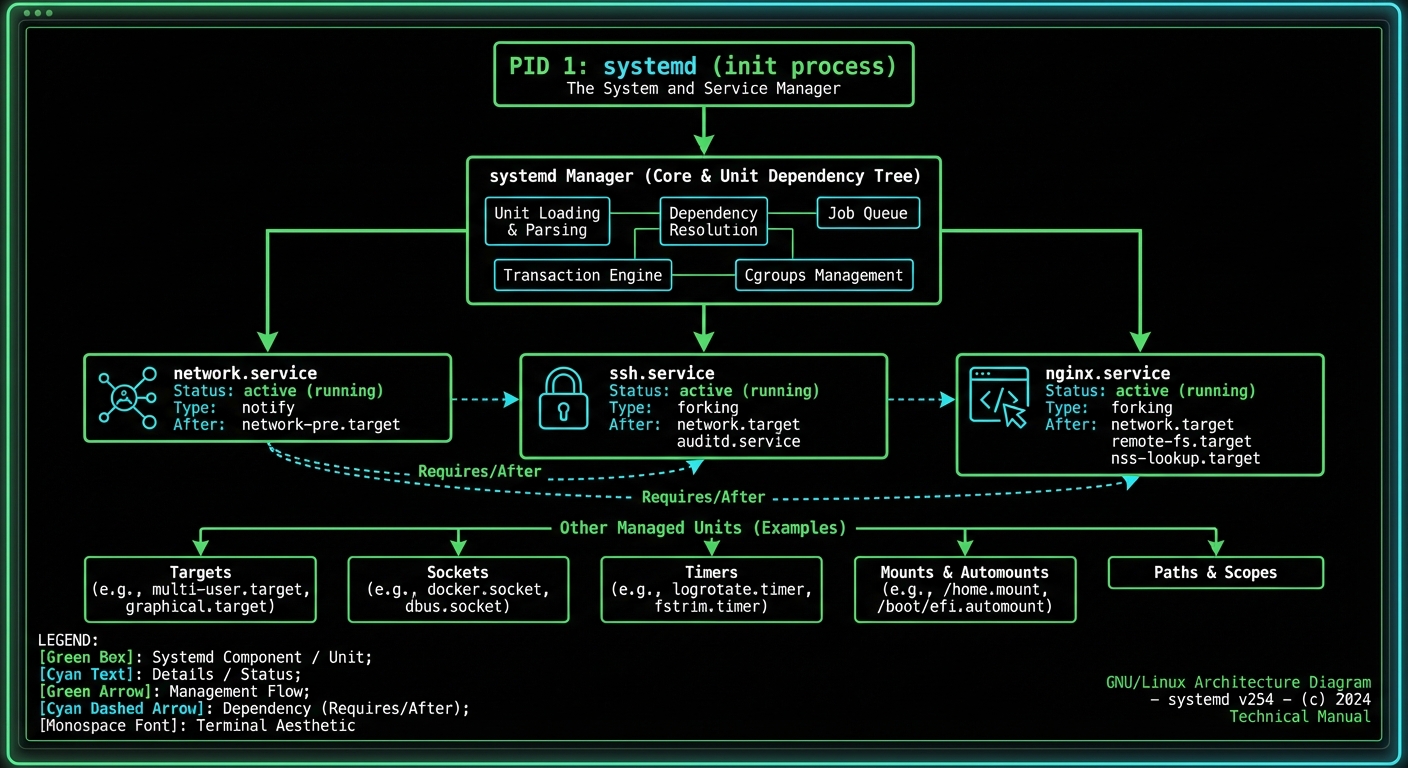
systemd is a system and service manager for Linux that provides a standard way to manage services. It is now widely used as the default init system for most Linux distributions, replacing older systems like SysV init.
The Role of init (PID 1)
In Linux, init – short for 'initialization' – is the first process that is started when the system boots up. You can find it at PID 1. init is responsible for:
- Managing the boot process
- Starting all other processes and services configured to run on the system
- Re-parenting orphaned processes (processes whose original parent has died)
- Ensuring system stability and process lifecycle management
Processes vs Services
You can think of a service as packaging around a piece of software that makes it easier to manage as a running process. A service adds convenient features:
- Dependencies: Define which services must start before others
- Startup Order: Control the boot sequence
- Environment Variables: Set specific environment for the process
- Resource Limits: Control CPU, memory, and I/O usage
- Permissions: Run services as specific users
- Restart Policies: Automatically restart failed services
- Simple Naming: Reference services by name instead of PID
2. systemctl: The Service Control Command
systemctl is the primary tool you'll use to interact with systemd. It provides a
unified interface for managing services, checking their status, and controlling system state.
Basic Service Management
Let's explore the fundamental commands for managing services. We'll use nginx as
an example service throughout this section.
| Command | Description |
|---|---|
systemctl start <service> |
Start a service immediately |
systemctl stop <service> |
Stop a running service |
systemctl restart <service> |
Stop and then start a service |
systemctl reload <service> |
Reload configuration without stopping |
systemctl status <service> |
Display detailed service status |
sudo) can manage
system services with systemd. This is a security measure to prevent unauthorized service
manipulation.
Enable and Disable Services
Starting a service makes it run now, but it won't automatically start on the next boot.
To control boot-time behavior, use enable and disable:
| Command | Description |
|---|---|
systemctl enable <service> |
Configure service to start at boot |
systemctl disable <service> |
Prevent service from starting at boot |
systemctl is-enabled <service> |
Check if service is enabled |
systemctl is-active <service> |
Check if service is currently running |
Listing Services
systemd manages many different types of units (services, sockets, timers, etc.). Here's how to view them:
3. Understanding Service States
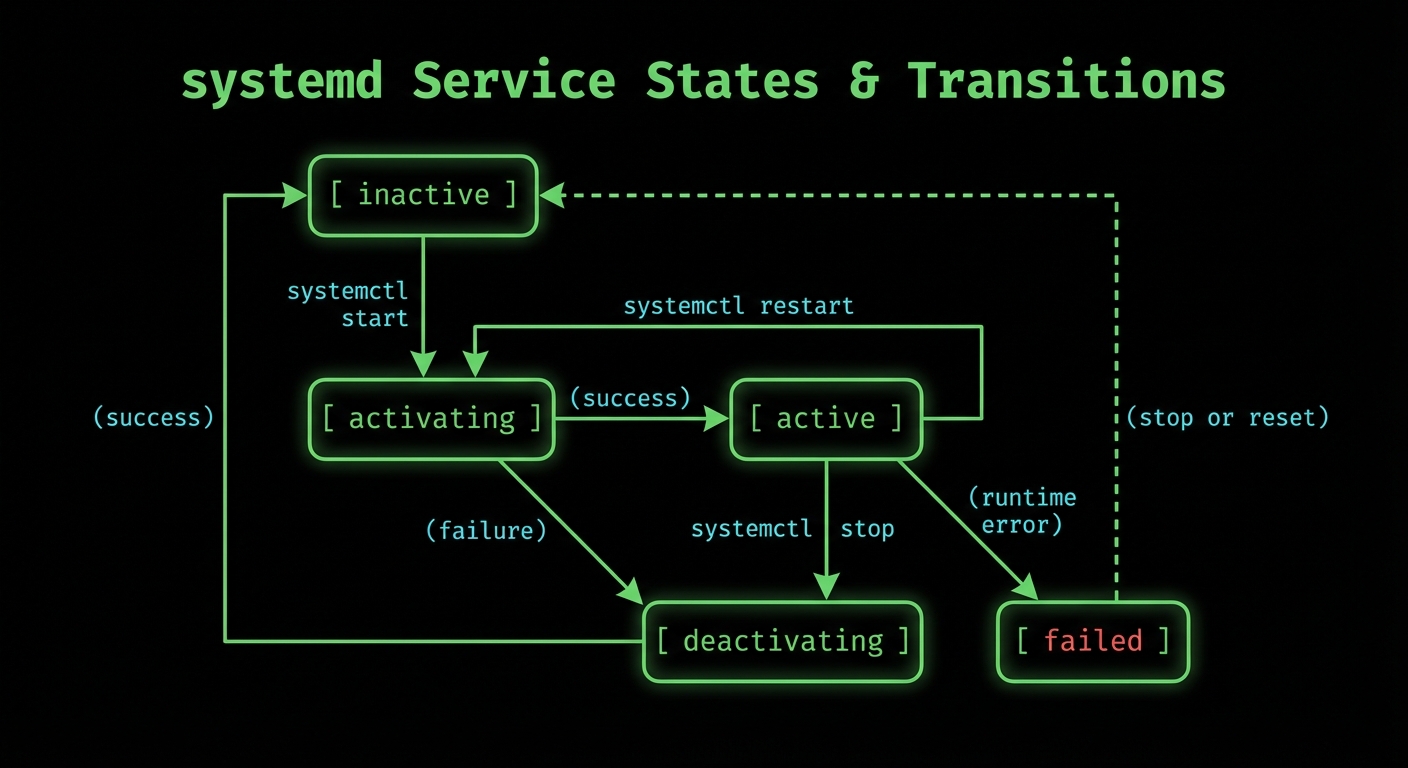
A systemd service can be in various states throughout its lifecycle. Understanding these states is crucial for effective service management and troubleshooting.
Primary Service States
| State | Description |
|---|---|
inactive (dead) |
Service is not running |
activating (start) |
Service is in the process of starting |
active (running) |
Service is running successfully |
active (exited) |
One-shot service completed successfully |
deactivating (stop) |
Service is in the process of stopping |
failed |
Service failed to start or crashed |
reloading |
Service is reloading its configuration |
Checking Service Status
The systemctl status command provides comprehensive information about a service:
Let's break down what each field means:
- Loaded: Shows the unit file path and whether it's enabled
- Active: Current state and how long it's been in that state
- Docs: Links to documentation
- Process: Pre-start processes that ran
- Main PID: The primary process ID
- Tasks: Number of tasks (threads) the service is running
- Memory/CPU: Resource usage
- CGroup: Control group hierarchy
4. systemd Unit Files
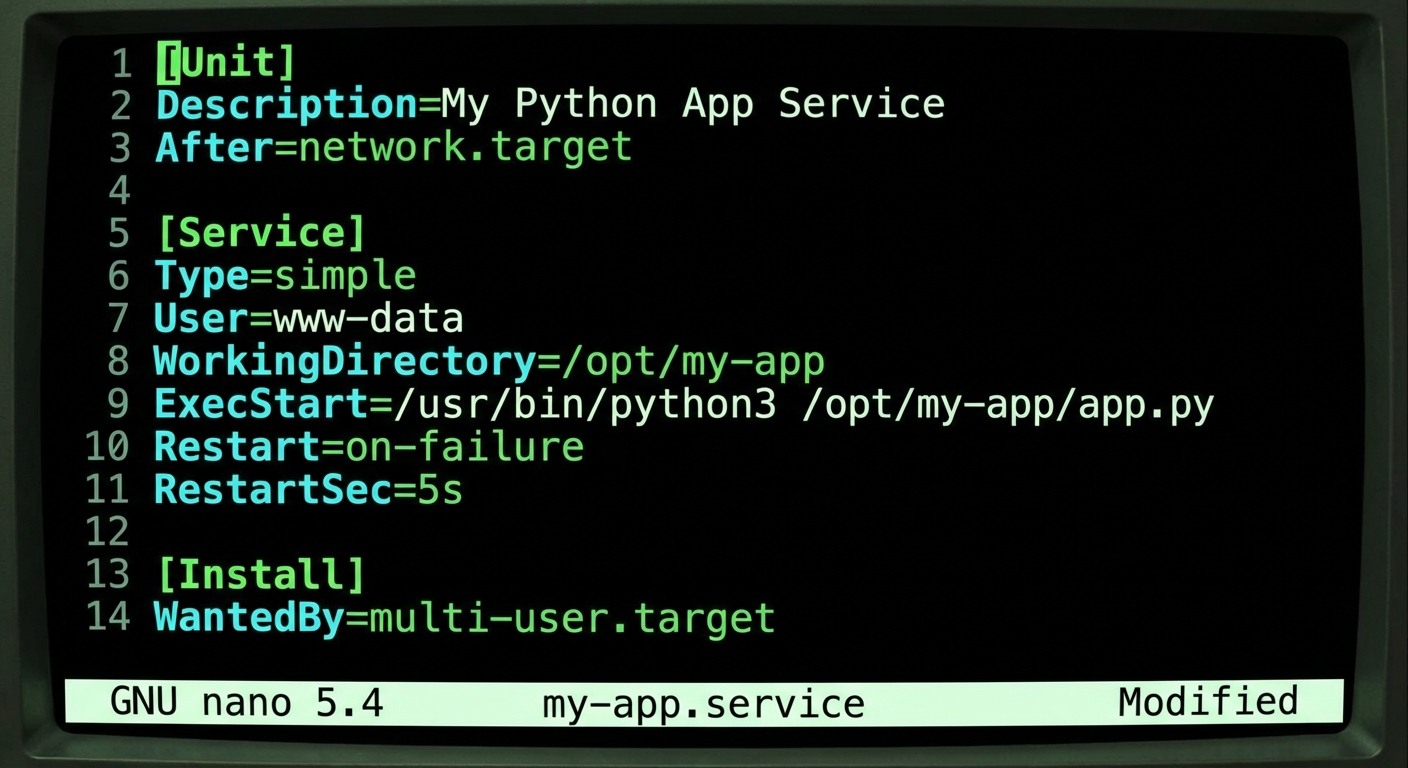
Services are defined by unit files, which are configuration files that tell systemd exactly how to manage a service. Understanding unit files is essential for creating and customizing services.
Unit File Locations
systemd looks for unit files in several locations, in this order of priority:
/etc/systemd/system/- System administrator's custom units (highest priority)/run/systemd/system/- Runtime units (created dynamically)/lib/systemd/system/- Distribution-provided units (lowest priority)
Anatomy of a Unit File
A unit file is divided into sections, each containing key-value pairs. Here's a complete example:
[Unit] Section
The [Unit] section contains generic information about the unit:
| Directive | Description |
|---|---|
Description |
Human-readable description of the service |
Documentation |
URLs to documentation |
After |
Start this service after the specified units |
Before |
Start this service before the specified units |
Requires |
Hard dependency - if these fail, this service fails |
Wants |
Soft dependency - will start these but won't fail if they fail |
[Service] Section
The [Service] section contains service-specific configuration:
| Directive | Description |
|---|---|
Type |
Service type: simple, forking, oneshot, dbus, notify, idle |
ExecStart |
Command to start the service |
ExecStop |
Command to stop the service |
ExecReload |
Command to reload configuration |
Restart |
When to restart: no, on-success, on-failure, always |
User/Group |
User and group to run the service as |
WorkingDirectory |
Working directory for the service |
Environment |
Environment variables |
Service Types
Understanding service types is crucial for proper service configuration:
- simple: Default. Process specified in ExecStart is the main process
- forking: Process forks a child and parent exits (traditional daemons)
- oneshot: Process exits after completing (used for setup tasks)
- notify: Service sends notification when ready (requires sd_notify)
- dbus: Service is ready when it acquires a D-Bus name
[Install] Section
The [Install] section defines how the service is enabled:
| Directive | Description |
|---|---|
WantedBy |
Target that should pull this service in |
RequiredBy |
Target that requires this service |
Alias |
Alternative names for the service |
multi-user.target- Multi-user system (no GUI)graphical.target- Multi-user system with GUInetwork.target- Network is available
5. Service Dependencies and Ordering
One of systemd's most powerful features is its ability to manage complex service dependencies. This ensures services start in the correct order and handle failures gracefully.
Dependency Types
systemd provides several ways to express dependencies:
Requires vs Wants
- Requires: Hard dependency. If the required unit fails, this unit fails too
- Wants: Soft dependency. Will try to start the wanted unit, but won't fail if it can't
After vs Before
Dependencies alone don't control ordering. You must explicitly specify order with
After and Before:
Requires without After.
This will start both services simultaneously, which may cause race conditions. Always use
After with Requires or Wants.
Viewing Dependencies
systemd provides tools to visualize and understand service dependencies:
Example output showing dependency tree:
Practical Example: Web Application Stack
Let's create a realistic example showing how to properly configure dependencies for a web application that requires a database and cache:
6. Troubleshooting Services
Viewing Logs with journalctl
systemd integrates with the journal logging system. Use journalctl to view service
logs:
Common Issues and Solutions
Service Fails to Start
Service Keeps Restarting
If a service is in a restart loop, check the restart policy and logs:
Dependency Issues
Debugging with systemd-analyze
7. systemd in Container Environments
Container environments like Docker typically don't run a full init system. This creates some differences in how you manage processes:
Docker Containers
Most Docker containers run a single process directly (PID 1) without systemd. This means:
- No service management layer - you start processes directly
- No automatic restart of failed processes (unless configured in Docker)
- Logs go to stdout/stderr instead of journald
- Signal handling is the responsibility of your application
Running systemd in Containers
If you need systemd in a container (e.g., for testing), you can configure it, but it requires special setup:
8. Practical Examples
Example 1: Creating a Simple Python Web Service
Let's create a complete systemd service for a Python Flask application:
Example 2: Database Backup Service (Timer)
systemd timers can replace cron jobs. Here's a daily database backup:
Example 3: Multi-Instance Services
You can create template units that can be instantiated multiple times:
Summary
In this Post, we've learned how to manage Linux services with systemd. Let's recap the key points:
- systemd is the modern init system (PID 1) that manages services in most Linux distributions
systemctlis the primary command for controlling services- Services are defined by unit files in
/etc/systemd/system/or/lib/systemd/system/ - Dependencies and ordering are controlled with
Requires,Wants,After, andBefore - Use
journalctlto view service logs - Always reload systemd configuration with
daemon-reloadafter editing unit files